Monday, June 11, 2007

ProCurve Switch - TFTP Flash Update

To update the IOS on the HP's ProCurve switches you first need to configure an access port so it can communicate to the TFTP Server.

ProCurve Switch 3500yl-48G> enable
ProCurve Switch 3500yl-48G# configure terminal
ProCurve Switch 3500yl-48G(config)# vlan 1
ProCurve Switch 3500yl-48G(vlan-1)# ip address 10.10.10.1/24
ProCurve Switch 3500yl-48G(vlan-1)# exit

Next, you will need to configure the network adapter on your PC or laptop and give it an address that's on the same network as the switch. In this case, I set it to be 10.10.10.2 255.255.255.0.

Then the next step is to connect your machine to the switch; plug a cable from your laptop or PC to the switch. And just to make sure that the data can travel from one end to another, we'll go ahead and try to send a ping to the server:

ProCurve Switch 3500yl-48G# ping 10.10.10.2

If the ping is successful, you need to launch your TFTP Server, then you can go ahead and update the flash by issuing the copy command and pass to it the server address and the filename:

ProCurve Switch 3500yl-48G# copy tftp flash 10.10.10.2 k_12_02.swi

And if you need to update the secondary flash, then issue this command:

ProCurve Switch 3500yl-48G# copy tftp flash 10.10.10.2 k_12_02.swi secondary

I make a habit of using scripts to make the whole process easier to manage and make the update faster so here's the entire script:

enable
configure terminal
vlan 1
no ip add
ip address 10.10.10.1/24
exit
ping 10.10.10.2
copy tftp flash 10.10.10.2 k_12_02.swi
y
copy tftp flash 10.10.10.2 k_12_02.swi secondary
y


Note: If you use this script, make sure that you update the ip address and change the filename.

Programmatically Add Event Handlers to Controls At Runtime

If you have read my previous blogs, you'll see that I have discussed about how to add and remove controls at run time. Some controls created at runtime are pretty much useless if they have no event handlers attached to them.

What are event handlers? Think of event handlers as actions that are bound to controls. What action(s) would you want to carry out when certain things happen (ie: like a button is clicked, doubleclicked…)?

Let take a look at the following lines of code:

Dim newButton as Windows.Forms.Button
Dim i As Integer
For i = 1 To 5
newButton = New Windows.Forms.Button
newButton.Name = "btnButton" & i
newButton.Text = "Button " & i
newButton.Top = 20 + i * 30
newButton.Left = 40
Me.Controls.Add(newButton)
Next

The code block above will add 5 buttons to the form at runtime. But when you click on the buttons, nothing happen. Why? This is because at this time, there are no event handlers attached to the buttons.

Let make some modifications:

Public WithEvents newButton As Windows.Forms.Button
Private Sub Form1_Load(ByVal sender As Object, ByVal e As System.EventArgs) Handles Me.Load
Dim i As Integer
For i = 1 To 5
newButton = New Windows.Forms.Button
newButton.Name = "btnButton" & i
newButton.Text = "Button " & i
newButton.Top = 20 + i * 30
newButton.Left = 40
AddHandler newButton.Click, AddressOf ButtonClicked
Me.Controls.Add(newButton)
Next
End Sub

Private Sub ButtonClicked(ByVal sender As Object, ByVal e As EventArgs)
MsgBox("You clicked: " & sender.name & vbCrLf & "Button name: " & sender.Text)
End Sub

Here the newButton has been redefined as a control with events and the AddHandler call attached the method ButtonClicked to the Click event of the control. Note that the control is declared as a global variable. You can’t declare a control with events as a local variable. The address of ButtonClick method is then bound or attached to newButton’s click event. Any time the button is clicked, ButtonClicked method will run and a message box will be displayed.

As you can see, it's pretty straight forward to add, remove and attached events to controls that are created on the fly. This blog only scratches the surface of these issues. You can further your study from these links:

Delegates and the AddressOf Operator
Events and Event Handlers

Download sample code: EventHandlers.zip

Sunday, June 10, 2007

Programmatically Remove Controls At Runtime

In the last blog, I discussed about how to programmatically add controls at runtime. This blog, we'll do just the opposite of that - removing controls programmatically.

The Controls collection offers a few methods that we can use to remove controls at runtime (Clear, Remove, RemoveAt).

Be careful when you call Remove or RemoveAt method though, as the Count property as well as the collection will be updated instantaneously and might produce undesirable result. Consider the following code snippet:

Dim i as Integer
With Me.Controls
For i = 0 to .Count - 1
If TypeOf .Item(i) is CheckBox Then
.RemoveAt(i)
Next
End With


This will work just fine if you have only one checkbox. However, if you have more than one checkboxes on the form, then it will remove every other one as the control collection is updated as soon as a control is removed resulting in a change in the Count property which messes things up and eventually throw an index out of range error.

To work around this, we'll have to remove the controls from the high end of the Count property as follow:

Dim i as Integer
With Me.Controls
For i = .Count - 1 To 0 Step -1
If TypeOf .Item(i) is CheckBox Then
.RemoveAt(i)
Next
End With


You can download the code for this blog here.


Programmatically Add Controls At Runtime

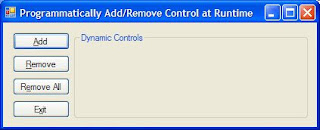
As I have experienced it, in some situations, you might not know the types of control or how many controls will be needed at design time. In these cases, you'd have to create the controls programmatically and dynamically add them to the form at runtime.

Adding controls at runtime is pretty simple:

Dim newControl as New Windows.Forms.CheckBox
newControl.Name = "chkCheckAll"
newControl.Text = "check all"
newControl.Top = 10
newControl.Left = 10me.Controls.Add(newControl)

The code snippet above will declare a checkbox and add it to the current form.

If you don't know the type of control then it'd be best to declare the new control as a generic control and then later modify to suite your need.

Dim newControl as Windows.Forms.Control
If createCheckBox Then
newControl = New Windows.Forms.CheckBox
Else
newControl = New Windows.Forms.RadioButton
End If

I find the .Tag property particularly helpful when working with controls dynamically. You can use it to store specific information about the control and you it later on when you process the control.

This blog only touches some of the properties for CheckBox & RadioButton as I try to keep the blog short. You should further explore their other properties to gain more understanding about them.

Now that you know how to add controls at runtime, let's see how you can programmatically remove them.

Friday, June 8, 2007

Cisco TFTP - Flash Update Problem

I was upgrading the IOS for the Cisco 6509s. I got Cisco TFTP Server setup and connected to it to download the file. The file was around 80Mb. TFTP Server threw an exception and shutdown. Upon restart, the file started to get downloaded but a few seconds later Cisco TFTP Server threw another error. This time I was able to view the error message and it said the transfer failed due to Synchronization Error.

I switched to SolarWinds TFTP Server and got a more detailed error saying the file was too large to be transferred through TFTP.

As an alternative, I used FTP Server from 3CDaemon and issued the command:

copy FTP: Disk0:

and it worked like a champ.

I had IIS running on my laptop so I turned off 3CDaemon and used IIS's FTP server. It worked out just fine.

So if you are transferring a large file you should use FTP and not TFTP to avoid potential problems and I also recommend 3CDaemon as it's got TFTP Server, FTP Server, Syslog as well as TFTP client all in one package.

Date Delimiter for Access and SQL Server

Microsoft's two most popular databases (MS Access & MS SQL Server) implement date delimiter differntly. This makes it hard to write queries that are compatible with both.

What I normally do this in situation would be creating a flag to indicate which database is being used and use the appropriate delimiter as follow:

Dim bAccessInUse As Boolean
Dim sSql As String

Function DateOut(byVal TheDate as String) as String
If bAccessInUse Then

Return "#" & TheDate & "#"
Else Return "'" & TheDate & "'"
End If
End Function

sSQL = "Select * From tablename Where date_col=" & DateOut(the_date)

If you use this function throughout your code and set and the flag by checking the connection string, you should have no problem making it run against either database without any modification.

Simple Way To Add Watermark

Here's a pretty simple way to add watermark to your image in VB6.

Private Sub Form_Load()
Dim Message As String
With Picture1
.AutoRedraw = True
With .Font
.Name = "Arial"
.Size = 18
.Bold = True
End With
Message = "Hello World"
.CurrentX = (.Width - .TextWidth(Message)) / 2
.CurrentY = (.Height - .TextHeight(Message)) / 2
End With
Picture1.Print Message
End Sub

File System Object

The FileSystemObject object library, which is part of the Microsoft Scripting Runtime library (Scrrun.dll) provides an object-oriented approach to directories & files manipulation. For instance, system folder creation and deletion is one common task your code will need to perform. Naturally, before you attempt to either create or delete a folder, your procedure will want to determine if it exists. The FileSystemObject library provides the perfect solution.

First, you'll need to set a project reference to the Scrrun.dll. The FileSystemObject is the top-level object within the file hierarchy, and you create an instance of it just like you would with any other object variable:

VB6

Set oFSO = New Scripting.FileSystemObject

ASP

Set oFSO = Server.CreateObject("Scripting.FileSystemObject")

The FolderExists() method returns True if the folder exists and False if not. The CreateFolder() and DeleteFolder() methods create and delete folders respectively. All three of these methods require the full path to the folder in question. The following code shows how to use these methods (assuming you've set a reference to the Microsoft Scripting Runtime library):

If Not oFSO.FolderExists("C:\Test") Then
Call oFSO.CreateFolder "C:\Test"
End If
Call oFSO.DeleteFolder "C:\Test"
Set oFSO = Nothing